PoolWind
PoolWind User Manual
This manual is for swimmers. Building PoolWind and setting it up for your pool are covered in the build guide and the setup and calibration guide.
Please read SAFETY.md first.
Contents
- Before you swim
- Starting PoolWind
- The pool screen
- Swimming with PoolWind
- Finishing a swim
- Your USB stick
- Reviewing your swims: Swim Plot
- Your settings
- The demo tour
1. Before you swim
- Use your own USB stick. It holds your personal zone limits (your slowest and fastest zone), so the jet never goes faster than you’ve chosen, and your own Pace table. Never use someone else’s stick, especially a stronger swimmer’s.
- Insert your stick before you swim. Best before starting PoolWind; a stick plugged in while PoolWind runs is picked up within a few seconds (see Your USB stick).
- Know how to take manual control: press OnOff to wind the jet down and stop the pump, or close PoolWind (see Finishing a swim) and use the pool’s own remote. Closing PoolWind winds the jet down to your slowest zone. While PoolWind runs, it fights against any change the pool’s own remote makes.
- Take any pool cover off before starting PoolWind, and close PoolWind before putting it back on. A cover changes what the camera sees: PoolWind may take part of it for a swimmer and adjust the jet when nobody is swimming.
2. Starting PoolWind
- Insert your USB stick.
- If no USB stick is found, all data will be recorded on the SD card as the ‘Master’ swimmer. Pool calibrations are defined by the ‘Master’ data.
- A USB stick may be left connected between sessions.
- Start PoolWind with its desktop icon.
- The pool screen appears, with the PoolWind version at the very top. With your stick in, PoolWind uses your settings and your own Pace table from the stick.
- Press Begin (or Resume, see below) when you’re ready to swim. Until then, the jet stays at its lowest setting.
Begin or Resume? If you’ve already swum today, the big button says Resume (in red) instead of Begin. Your swim continues where it left off: today’s distance and average Pace carry on from your earlier session.
A blank or new USB stick? PoolWind offers to set it up as a new swimmer’s stick (see Setting up a new stick).
“Camera moved?” A few seconds after the start, PoolWind checks that the camera still sees the pool the way it did when the swim area was set. If it has moved (knocked, or moved for cleaning), PoolWind asks. Choose Adjust to move the swim area with the picture, unless you know better: Keep leaves it (it asks again next time), Set Swim Area lets you set the corners yourself. If it says Check the camera, the camera has moved too far, or the picture isn’t the pool it knows: put the camera back (or ask the person who set it up) before swimming.
3. The pool screen
The screen shows the camera’s view of the pool swimming area from above, with your numbers on top in large letters you can read from anywhere in the pool.
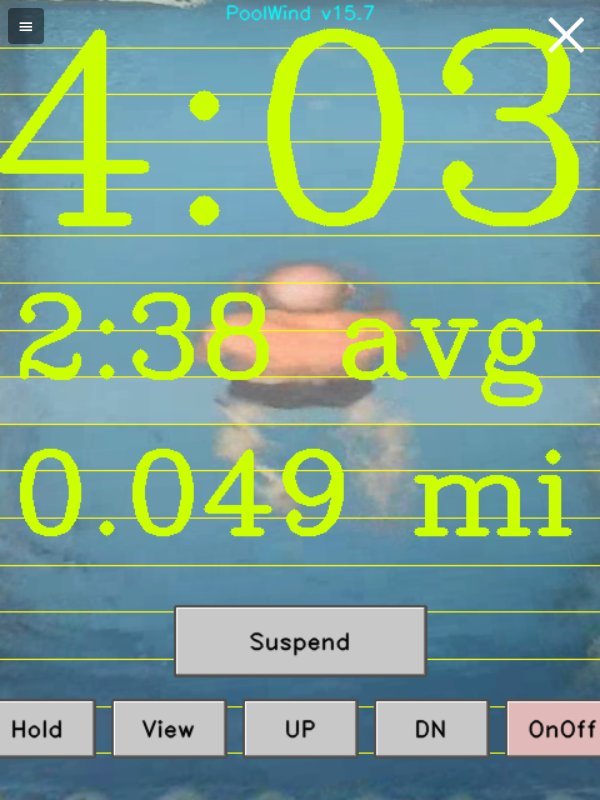
Your numbers:
| On screen | Meaning |
|---|---|
Large Pace at the top (e.g. 2:15) |
Your Swimmer Pace: your estimated Pace through the water, in minutes per 100 yards |
2:31 avg |
Your average Pace so far today |
0.512 mi |
Distance swum today, in miles |
Buttons:
Most buttons are labeled with what they’ll do when you press them. Two of them also change color to warn you that PoolWind isn’t running normally: Hold turns yellow and Suspend turns red.
| Button | What it does |
|---|---|
| Begin (large, center) | Starts the day’s first swim. Then it says Suspend |
| Suspend | Pauses your swim. Then it turns red and says Resume. See Pausing |
| Resume (red) | Continues your swim |
| Hold | Keeps the jet constant, wherever you are in the pool. The button turns yellow and says Vary. See Hold |
| Vary (yellow) | Shown while Hold is on. Use UP and DN to vary the held speed, and press Vary to go back to automatic control |
| View | Switches between the camera view and three detection views (see below) |
| UP / DN | In Hold mode, raise or lower the held speed, one jet step per press |
| OnOff (the power symbol) | Turns the pool’s pump on or off, at one touch. Red and pressed in while the pump runs, grey while it’s off. The jet winds down first (see OnOff) |
| ≡ (top left) | Menu, in the order things are set up: Set Swim Area… and Calibrate pool… (the pool’s calibration, for the builder), Pace correction… (your Paces, see Pace correction), Swimmer limits… (your zones, height and video settings), then Swim Plot… |
| X (top right) | Closes PoolWind |
A button looks pressed in while you touch it.
The View button cycles through four views. The first is the normal camera view. The other three show what the camera’s swimmer detection sees, in black and white. They help when checking that PoolWind is detecting you properly. Press View until the camera view returns.
Tap the picture (anywhere off the buttons) to light up the zone that matches the jet’s speed and show the lines between the zones; tap again to turn them off. See Seeing the jet’s zone.
4. Swimming with PoolWind
How the jet follows you
PoolWind divides the pool into zones from back to front. Each zone has its own jet speed, slowest at the back and fastest at the front.
- Speed up, and you move forward into a faster zone. The jet speeds up until it balances your faster stroke.
- Ease off, and the jet pushes you back into a slower zone, where it relaxes again to balance your slower stroke.
- Swim steadily, and you settle in one zone with a steady jet flow.
Your slowest and fastest zone are set on your USB stick (see Swimmer limits), so the jet never goes faster than your fastest zone.
You can change strokes, speed up, and slow down to rest without running into the front or the back of the pool. But a sprint will put you into the wall. Delays in jet response and changing the momentum of the large volume of water take a few seconds. Give the system a little time to work.
Seeing the jet’s zone: the zone highlight
Tap the picture (anywhere off the buttons) to light up the zone that matches the jet’s speed right now, as a faint band across the screen, with thin yellow lines between all the zones. Tap again to turn them off. They are turned off when PoolWind starts.
- The band is the jet’s zone, not yours: it is not a physical zone but it represents the rate the water is moving. You can think of the band as the readout of a jet speed meter, slowest at the bottom of the screen (the back of the pool), fastest at the top. For how the zones work, see PoolWind in brief in README.
- It stays put while the jet holds a speed, so it’s a stationary reference: you can see a stronger or easier stroke carry you forward or let you drift back against it.
- It moves as soon as the jet changes speed, a moment after you move. The water then takes a few more seconds to catch up. Those delays are why a sprint can run you into the wall: you can watch it happen.
- Don’t blame the program for the slow movement of the band: it only reflects built-in pool delays of setting the jet speed (moving the valve). Moving the mass of the water takes a few seconds more. Nothing can speed that up.
The same tap works on the video in Swim Plot.
swimArea definition
swimArea is the swimming area of the pool that does not include the water return benches. Its four corners are marked using the menu item: (≡, top left) Set Swim Area… (see The swim area in the setup guide). Everything else the camera might pick up is cut out of the swimArea and discarded. The swimArea is what you see on the monitor.
swimZone definition
swimZone is a subset of the swimArea and is a lateral zone down the middle of the pool that has a width of 35% (as shipped) of the swimArea. It’s a “zone” because PoolWind only responds to swims occurring in the swimZone.
dataTracking definition
dataTracking refers to a set of operations that consists of:
- compute and display distance swum
- compute and display average Pace
- record video taken of the swimArea including the swimmer
- record swim data synchronized with the video including Pace, averagePace, and distance
This set can be turned on or off as a whole. When “on”, the latest data is displayed and sent to the USB stick (or on the SD if there is no stick). When “off”, computation and recording stop, leaving latest values frozen on the monitor (Pace, however, still updates). When “on” again, data is appended, not destroyed.
Swim down the middle in the swimZone
PoolWind turns on dataTracking only if you are in the swimZone but allows you to deviate in and out with no problem.
- if you leave the swimZone and stand next to it, dataTracking is suspended and the jet winds down to its lowest setting after a few (3) seconds
- if you leave the pool and the camera can’t see you, dataTracking stops within a fraction of a second, and the jet starts winding down at once, stepping down to its lowest setting over several seconds (there’s no 3-second wait)
- if you stop moving in the swimZone (standing or floating), after 15 seconds PoolWind treats you as gone and the jet winds down; after 3 more minutes it presses Suspend by itself (the button turns red)
- dataTracking is re-enabled when you re-enter the swimZone
Pausing: Suspend and Resume
Press Suspend to take a break.
- dataTracking stops
- the jet winds down to its lowest setting.
- the button turns red (easy to spot while swimming) and says Resume
- press Resume to continue your swim and return back into the swimZone
As mentioned directly above, leaving the swimZone also suspends dataTracking but pressing the “Suspend” button will not allow dataTracking to resume if you re-enter the swimZone.
If the pump is turned off, with OnOff or the pool’s other remote, your swim pauses the same way, and goes on by itself when the pump is back on. Begin or Resume with the pump off asks “Turn pump on?”.
Hold: a steady jet
Press Hold to adjust the jet flow to a constant level.
- you had already left the swimZone to reach the monitor and mouse
- data tracking had stopped
- the jet probably had or will soon have wound down to its lowest setting
- the button turns yellow and says Vary, an easily seen reminder that the jet is no longer following you
- immediately the jet will start to increase its flow to where it was when you exited the swimZone
- press and hold UP or DN to vary the jet flow as indicated by the Pace display
When you return back to the swimZone:
- the jet flow will not vary
- dataTracking resumes
Press Vary to go back to automatic control.
- you had already left the swimZone to reach the monitor and mouse
- data tracking had stopped
- the jet winds down to its lowest level
- PoolWind runs normally
Note that if a coach is pressing the buttons for you and you remain in the swimZone, the jet flow will not wind down and dataTracking remains active.
Hold is useful for drills or steady-Pace training. Remember that in Hold, the jet doesn’t slow down if you fall back, get out of the swim zone, or even leave the pool.
OnOff: the pump
OnOff turns the pool’s pump on or off, the same as the button on the pool’s remote. PoolWind sees whether the pump is running: the button is red and pressed in while it runs, and grey while it’s off. It changes as soon as you press it.
PoolWind first winds the jet down (“Winding the jet down before turning the pump off…”, or on), then presses the pool’s On/Off, so you feel the jet slow down before it stops: to your slowest zone before turning it off, and to the jet’s lowest setting before turning it on, so it always starts slow. PoolWind stops adjusting the speed while it does this, giving OnOff top priority.
- Turning on: if the pump didn’t start, the button goes back to grey after a few seconds. Press it again.
- Turning off: PoolWind gives the pump up to 5 seconds to stop. Only if it’s still running after that does PoolWind press again, for up to 30 seconds. If it still runs, a box asks you to turn it off with the pool’s other remote. While the box is open PoolWind sends nothing to the pool, which turns its pump off by itself after 30 minutes without a signal. Press Exit when you’ve seen it.
In an emergency, press Stop pump now in the wind-down message: the wind-down stops and the pump is turned off at once. It only ever stops the pump, never starts it.
No swimmer for 5 minutes: with the pump running and nobody in sight, PoolWind shows a box for 30 seconds, then turns the pump off and closes. Press Keep swimming in the box to carry on. (Not while Set Swim Area is open.)
Pace correction: when the Paces don’t feel right
Pace is only an estimate (body type, stroke, how deep you swim). If the Paces PoolWind shows don’t match Paces you know from a regular pool, correct them while you swim:
On a newly calibrated pool, the Paces start as a rough estimate from the calibration’s voltage scan: 7:00 at the slowest jet speed to 1:00 at the fastest (see Begin initial voltage scan in the setup guide). Pace correction brings them closer to your own.
Whose Paces. With your USB stick in, you correct your own Pace table, kept on your stick: other swimmers aren’t affected. With no stick, you correct the pool’s Pool Default Paces (Master Pace-Volt in Swim Plot), which everyone without a stick swims with. The box’s title says whose, for example Pace correction: Bill_G or Pace correction: Pool Default. Only the Paces shown change, never the jet speeds or anyone’s zones.
Your earlier swims change too. Swim Plot and the calendar show every swim in the Paces in use now (see Master vs Swimmer Pace-Volt). So as soon as you type a Pace, move a drag number or press Copy Pool Default, your earlier swims are shown in the new Paces as well. With your stick in, that’s all your swims; with no stick, all swims made without a stick. Your swim logs themselves never change: ↺, or putting the Paces back, shows them as before. PoolWind warns you in the Pace correction box and when you press Make permanent.
- Open the menu (≡) and choose Pace correction…. A box opens over the pool screen. It lists every zone, fastest at the top: Zone, Your stored Pace (the Pace your table gives), Your pending Pace (with your corrections) and Your new Pace, an empty box to type in, with a graph of the same beside them (stored grey, pending blue). Your own zones are bold.
- Swim until the current feels like a Pace you know, then move aside. The zone you were in turns yellow and its box is ready.
- Type the Pace it should be:
1 4 8is 1:48, on the keyboard or the box’s number pad; the third digit enters it. Your pending Pace and the graph change as you type, and the pool uses them at once. - Swim again, and do it again at other speeds (slow, medium, fast) as often as you like.
Tap a box, or a zone on the graph, to choose it. While the swim is running (Suspend showing), the jet goes to that zone’s speed, so you can feel it before typing. Drag the graph to scroll. Esc, or ↺ beside a box, puts it back. ▲ in the top corner hides the instructions to give the table more room; ▼ brings them back.
How your pending Paces are worked out. The Paces you type stay exactly as typed, and so do the two ends, the slowest and fastest zones’ Paces, set when the pool was calibrated (shown in their boxes, grey; they can’t be changed). Every other zone keeps its place on the stored curve: between two fixed Paces it sits the same part of the way from one to the other as it does there. So the pending curve keeps the stored one’s shape and stays in order, as long as each Pace you type is faster than the one below it. One Pace changes the zones on both sides of it, most near your Pace and less toward the ends. To hold part of the table where it is, type a Pace there too.
Red: two of your Paces are out of sequence (a faster zone with a slower Pace); both boxes turn red. Change one of them. Until you do, the pool keeps your last good pending Paces.
Bold marks the column the pool is swimming with: Your stored Pace or Your pending Pace. While a value is red, neither is bold.
Swimming with the Pace correction screen open. PoolWind runs as usual underneath. With Suspend showing (a copy of the button is at the top of the box) the swim counts toward distance and the log as usual, and while you swim a big blue Pace display covers the instructions so you can read your Pace. With Begin or Resume showing, the jet stays wound down until you press it. While the box is open PoolWind doesn’t suspend the swim by itself, and swimming out of the swim area doesn’t wind the jet down: it stays at its step until you swim back in.
| Button | What it does |
|---|---|
| Back | Back to the pool screen. Your changes stay in use, pending |
| Make permanent | Writes your pending Paces into your stored ones. It asks first and names the table: yours on the stick, or the pool’s Master table. A copy of the file before is kept. Greyed out until there’s something pending, so after a save until you make another change |
| Now swimming with ‘pending’ values / ‘stored’ values | Says which Paces the pool is swimming with. Press it to swim the other ones, to compare, and again to go back. PoolWind starts with pending every time. Greyed out while nothing is pending |
| Copy Pool Default to “Your pending” | With your stick in: puts the pool’s own Paces into Your pending Pace and empties Your new Pace; the pool swims them at once. The button stays down; ↺ beside it brings back your own pending Paces and the Paces you typed. To make the pool’s values your own, press Make permanent while it’s down |
| Clear | Drops the pending changes, after “Are you sure?”: your pending Paces are your stored ones again |
| Details… (a link at the end of the instructions) | A typical session, in short |
Pending changes are kept on your stick (or with the Master table) even if PoolWind is closed or the power goes off; “Pending Paces” shows on the pool screen while they’re in use. Closing PoolWind with changes pending asks Keep pending or Make permanent.
After a PingPong calibration, two more numbers are at the top of the box, bodyDrag and deltaBodyDrag: they change the whole table (see the setup guide). Defaults puts them back to the author’s pool’s.
What happens to your old swim data if the pool is re-calibrated
Nothing is lost: your swim logs aren’t changed. Each line keeps the jet’s voltage and the Pace it was swum at, so Swim Plot and the calendar show old swims in the new table (see Master vs Swimmer Pace-Volt). If the pool’s controller or Pace cable was replaced, old swims may read a little off.
A swimmer’s own table on their USB stick isn’t changed by re-calibrating the pool: with your stick in, your swims look the same. Changing your own Paces in Pace correction does change them: see Your earlier swims change too.
Doesn’t re-calibrating make old swims wrong? No, it corrects them.
- What doesn’t change: the jet. At 1.90 V it pushes the same water at the same speed today as last month. That’s what you swam against.
- What changes: the table. It only translates voltage into Pace. Re-calibrating says “1.90 V is really 2:10, not 2:00.”
- If old swims kept their old Paces, they’d show 2:00 and today’s swims at the same voltage 2:10: you’d look 8% slower, though nothing about you or the water changed.
- So PoolWind re-reads old swims in the new table. Both show 2:10: old and new are measured with the same ruler.
The arithmetic. Each line of a swim log keeps three numbers: the Pace you were shown (P), the jet’s voltage (V) and the table’s Pace at that voltage at the time (T). P can differ a little from T, because it also follows where you are in the pool. Shown today:
Pace today = P × (new table’s Pace at V) / T
Example: logged at 1.90 V, the old table gave 2:00 (T), you were shown 2:02 (P). The new table says 2:10 at 1.90 V, so that line now shows 2:02 × 2:10 / 2:00 = 2:12. Distances are worked out again from the new speeds (speed = 1 / Pace): a swim that was 1000 yd at the old Paces shows about 923 yd at Paces 8% slower. The log file itself never changes.
Where it can still be off:
- New hardware. With a new controller or Pace cable, 1.90 V may be a different jet speed, so old voltages no longer line up.
- A fresh scan, no measured Paces yet. The table is only the scan’s 7:00-to-1:00 estimate until Pace Entry or PingPong is run: old and new swims still compare fairly, but the Paces are only as good as that estimate.
- Swims from before PoolWind v15.7. They were given their numbers once, from the table at the update. A day that couldn’t be converted shows grey on the calendar and keeps its Paces as swum.
5. Finishing a swim
Close PoolWind before putting on a pool cover. A cover changes what the camera sees, and PoolWind may take part of it for a swimmer and adjust the jet when nobody is swimming.
Press OnOff to turn the pump off: the jet winds down first. Then press X at the top right of the screen to close PoolWind. It then:
- winds the jet down to your slowest zone and releases its control of the pool’s remote (if the pump is still running, a box asks Shut Down, to turn it off, or Exit, to leave it running; starting PoolWind again also clears that box),
- finishes saving your swim to your USB stick, or the Raspberry Pi if there’s no stick, and
- ejects your USB stick, so it’s safe to remove.
Otherwise there’s no message: once PoolWind has closed, you can remove your stick, and the next swimmer can insert theirs before starting PoolWind. Or leave it in: if you start PoolWind again, it finds your stick and your settings without unplugging it.
Only if PoolWind can’t eject the stick does a message say “USB stick not ejected”. Your swim is still saved, but don’t pull the stick yet. Something else is using it (for example a terminal open in the stick’s folder, or a video playing from it). Close that, then eject the stick yourself: click the eject icon (⏏) in the top bar of the screen and choose your stick. Remove it when its icon disappears from the desktop.
Why eject? The Raspberry Pi doesn’t write to a USB stick at once: it can hold the last part of your swim in memory for up to half a minute. Pulling a stick that hasn’t been ejected can lose the end of your swim, or leave the stick needing repair.
To look at your stick’s files: unplug it and plug it back in while PoolWind is closed. It then shows in the File Manager.
Once PoolWind is closed, the pool works normally with its own remote.
6. Your USB stick
Each swimmer has their own USB stick. It holds:
- your settings: zone limits, height, training video and frames per second (see Your settings);
- your Pace table: made from the pool’s table the first time your stick is used, then corrected by you with Pace correction. The jet’s speeds and limits are always the pool’s;
- your swims: a log of every swim and its training video, in a folder
called
CSV Vault.
Swimmers without a stick all share one log and the pool’s Master Pace table on the Pi, so their swims can’t be told apart.
For how the pool’s Master data, your own data and the USB stick fit together, see Pool, Master, and Swimmer datasets and the USB stick in the setup guide.
Insert USB stick before, remove after
Insert your USB stick before starting PoolWind, and remove it only after PoolWind has closed and ejected it (see Finishing a swim). Pulling it out during a swim won’t affect the jet, but the rest of that swim won’t be recorded.
A stick plugged in or pulled out while PoolWind runs is noticed within a few seconds. A swim in progress is suspended (the button turns red), Pace correction and Swimmer limits close, and PoolWind starts again with that swimmer’s settings, swims, today’s totals and Pace table, or with the Master data when the stick was pulled.
How much it holds depends on frames per second
Frames per second is how many snapshots of your swim PoolWind records each second. See Frames per second: how often PoolWind records for what it is, and why and how to change it.
A 32 GB USB stick, at the shipped 5 frames per second, holds roughly 70 hours of swim data and video. At 15, the stick holds about 25 hours. It’s a tradeoff of video smoothness vs data size.
If your stick is nearly full when PoolWind starts, it asks what to do:
- Log in Main Memory: save today’s swim on the Raspberry Pi instead.
- Erase Oldest Video: delete your oldest training videos to make room. PoolWind shows exactly what it will delete and asks you to confirm first. Your swim logs are kept.
- Eject & Replace: eject the stick and close PoolWind, so you can use a different stick.
Setting up a new stick
When PoolWind starts with a blank or unrecognized USB stick inserted, it offers to set it up as a new swimmer’s stick. You enter:
- the swimmer’s name (it becomes the stick’s name),
- their height,
- their slowest and fastest zone (the Pace is shown beside each). Set them better later by swimming, with Swimmer limits, and
- whether to record training video, and its frames per second.
Setting up a stick erases everything on it. PoolWind asks you to tick a box confirming this before it continues.
For children and weaker swimmers, choose a low fastest zone, for example one at about 3:00 per 100 yards.
Swimmer limits: your slowest and fastest zone
Your USB stick holds your slowest and fastest zone: the jet never goes slower or faster than these. Open the menu (≡, top left) and choose Swimmer limits…. A small box opens over the pool screen; drag it out of the way if you want to see the swimmer. Its upper section, Limits - Auto or Manual Settings, shows both zones, with the Pace beside each.
By hand (a coach can do this without the swimmer swimming): tap Slowest or Fastest, then press + or - (or the + and - keys on the keyboard). Press Save.
By swimming (Auto) (Details, next to Auto in the box, says how a coach does it, or a swimmer alone):
- Press Start. The swim starts, counting toward your distance and average Pace as usual; if the pool’s pump is off, PoolWind offers to turn it on first. The zones open up to the pool’s whole safe range, and Start swimming shows until you’re swimming.
- Swim at your slowest: drift back until the jet is as slow as you want (almost treading water). Then the coach presses Low limit reached; swimming alone, leave the swim area at once (the zone is remembered) and press it yourself.
- Start swimming shows again. Now swim at your fastest, toward the jet: it speeds up as you move forward. At the fastest speed you can hold, the coach presses High limit reached, or you leave the swim area and press it yourself.
- Check the two zones, change them with + and - if needed, and press Save.
Start over, shown once you’ve pressed Start, puts the zones back as they were and brings back Start.
Manual Settings, the lower section: your height, whether to record training video, and its frames per second (5 to 15: more gives smoother video but fills your stick faster, see Frames per second). Training video and frames per second take effect at the next start.
Save writes both sections to your USB stick. With no stick in, it saves them in the main settings file, for everyone who swims without a stick. Cancel closes the box without changing anything.
7. Reviewing your swims: Swim Plot
Open the menu (≡, top left) and choose Swim Plot…. When Swim Plot opens, the jet winds down to your slowest zone.
Selecting dates to review:
The “Select Swim Date(s)” screen shows up with “Use: Swimmer Pace-Volt / Master Pace-Volt” selector (see Master vs Swimmer Pace-Volt below) and a “From” calendar and a “To” calendar. After a short “Please wait” popup, the current month shows in both calendars and each day having a swimming session shows up in green font with the daily average Pace underneath. Show: at the top right picks what’s under each day: Avg Pace (blue, the default) or Distance (mi), the day’s distance (red, for example 0.659 mi). Both are worked out in the Paces in use now.
Today’s date in both is selected and is generally the most picked date range, so you can go directly to OK to bring up the plot and video.
But you can pick a range of dates. Going to an earlier month, PoolWind reads that month’s swims the first time, popping up “Please wait”, and then shows each day’s average Pace. Pick a range of dates, then press OK. Another “Please wait” shows while the plot is prepared.
Pulling your USB stick while Swim Plot is open closes it. You can plug it (or another swimmer’s stick) back in and select Swim Plot… again.
The plot and video:
The swim’s training video plays together with a plot of your swim:
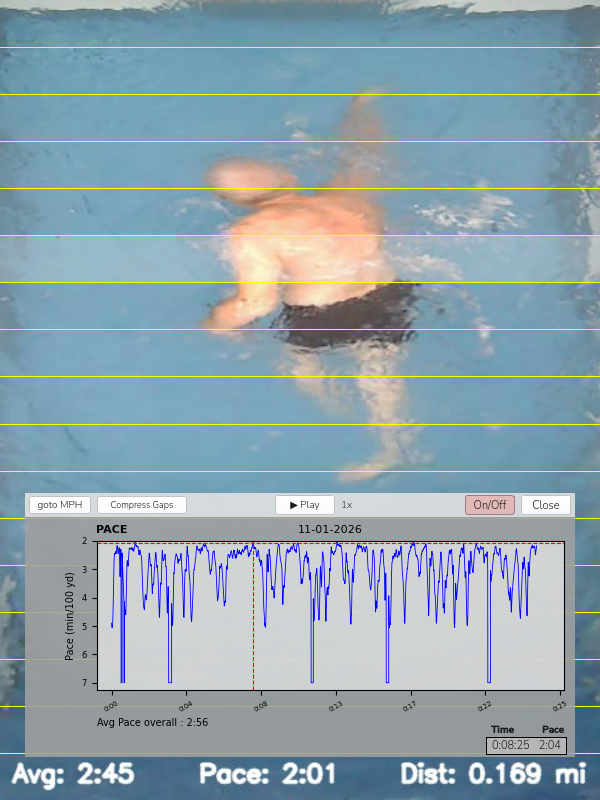
- Pace over time (shown first), or MPH over distance: switch with the goto MPH / goto Pace button (it names the other plot).
- Faster swimming means a lower Pace so the Pace plot is inverted to avoid confusion. Up means faster swimming in both plots.
- A cursor on the plot follows the video, frame by frame. Move the cursor and the video jumps to that moment.
- A swim date is shown centered and under the top header that represents the date of the plot where the cursor is positioned. If multiple days were selected, that date will change as the cursor moves through the plot.
- PACE or MPH, at the left of the date’s line, names the plot shown.
- The small box at the lower right shows the cursor’s Time and Pace (or Miles and MPH).
- Avg Pace overall is the whole range’s average.
- Distance (miles) overall is the whole range’s distance.
- The zone highlight shows the zones and the moving current zone band when it’s on: click the video to turn it on or off.
- The plot window can be moved out of the way by click and drag on the top header.
- Note the Avg (average Pace of swim to the moment), Pace (the current pace at the moment) and Dist (total distance to the moment) are part of the video written at the moment. If pool calibration had changed (or Master vs Swimmer Pace-Volt had switched, see below) since then, their values may be different than their corresponding values in the plot box.
Controls:
| Control | What it does |
|---|---|
| ▶ Play / Pause | Plays or pauses. The video starts playing by itself and stops at the end |
| Mouse wheel over the plot | Zooms time or distance in and out |
| Mouse wheel over Play or the speed label | Plays faster or slower |
| Compress Gaps | Shortens the breaks between swims to a few seconds, so the plot shows mostly swimming. The gaps are quite large between days (if multiple days were selected) and those are compressed as well. The cursor stays where it was, and the Time, Pace and distance shown don’t change. |
| Left click on the plot and drag | Moves the cursor and swim video through time or distance |
| Right click on the plot and drag | Moves the entire plot and cursor left or right |
| Click on the video | Turns the zone highlight on or off (swims recorded since it was added) |
| Pump (the power symbol) | Turns the pool’s pump on or off, after “Are you sure?” (OK / Cancel). Red while the pump runs, grey while it’s off |
| Close | Back to the calendars, to pick another day |
Master vs Swimmer Pace-Volt: Any swimmer can change the Pace values in the Pace-volt table with the Pace correction… menu selection. The new values go into the Swimmer dataset on their own USB stick and will apply to their entire Swimmer dataset, even prior swims. That makes their Pace-volt table different from the Master dataset. The swimmer would usually select Swimmer Pace-Volt in the calendar screen.
A coach who wants to compare swims from different swimmers can select Master Pace-Volt in the calendar screen to even the playing field. The pool had been calibrated by the builder and all swimmers would be evaluated against it.
With no USB stick in, the choice is greyed out and shows Master Pace-Volt: without a stick, everyone swims with the Master table.
What to look for
The heart of PoolWind’s training value is that you can see how different stroke styles and methods affect your swimming. In a macro view, you can see on the calendar’s daily average Pace how you’ve improved day by day. Of course that depends on what your stroke style is and which ones you used during the day’s session.
In the micro view, you can look at the video and see how each stroke and kick builds a momentary acceleration against the pool’s stationary backdrop. Turn on the zone highlight for a clearer backdrop: it shows the zone of the jet’s speed at that moment, so you can see each stroke carry you forward or let you slip back against it.
In between macro and micro views, the plots can tell you if those movements combine to build up speed. However the plots can never resolve down to the level that shows the effects of each single stroke or kick. A trained eye can look at all three views and determine what might improve style.
8. Your settings
You set your settings with Swimmer limits in the menu (see Swimmer limits):
| Setting | What it does |
|---|---|
| Slowest and fastest zone | The jet never goes slower or faster than these (zone 1 is the jet’s slowest speed) |
| Height | Your height in inches. Helps PoolWind judge your position |
| Record training video | Records the video for Swim Plot |
| Frames per second | How often PoolWind records, 5 to 15 (below) |
They’re stored on your USB stick, or with no stick in, in the main settings file on the Pi, for everyone who swims without a stick.
Frames per second: how often PoolWind records
While you swim, PoolWind takes snapshots: each one is a line in your swim log (time, Pace, distance) and one frame of your training video, always together, so the plot and the video stay in step in Swim Plot. Frames per second is how many snapshots it takes each second.
| Frames per second | Good for | Video | A 32 GB stick holds |
|---|---|---|---|
| 5 (shipped) | Everyday swims: following your Pace and stroke rhythm | Steps visibly from frame to frame | About 70 hours |
| 15 | Studying a single stroke or kick, slowed down in Swim Plot | Smooth, even in slow motion | About 25 hours |
Why change it. Raise it to 15 for sessions where you want to study your technique closely: each arm pull and kick shows in three times as many frames. Go back to 5 for everyday swims, so your stick doesn’t fill three times as fast.
How to change it. In Swimmer limits, under Manual Settings, set Frames per second and press Save. It takes effect the next time PoolWind starts.
Other settings (the pool’s calibration, the jet’s limits and advanced tuning) are covered in the setup and calibration guide. They’re for the builder, not for day-to-day swimming.
9. The demo tour
What to look for: the swimmer will swim through different zones, starting at the rear of the pool, where he is practically treading water, and then swimming to the front, which he cannot reach because the max jet speed has been set beyond his abilities. The zone boundaries show from the start (a click on the video hides them, another shows them again). The boundary corresponding to the jet speed will be slightly highlighted and you can visualize the screen as a jet speed meter. The highlighted zone will follow the swimmer but not immediately because of pool controller and water mass delays.
In a demo, PoolWind plays a recorded swim and simulates the jet, so you can see how it follows a swimmer without a pool. To run it on a Windows PC, download the PoolWind demo and see section 13 of the setup guide. The demo starts swimming on its own, as if Begin were pressed, so the distances below match yours: follow along by the distance on the pool screen (in miles). Give PoolWind the left third of the screen and this page the rest. In the video the swimmer tries the buttons, but in the demo only your clicks count, so click along where the table says.
| Distance (mi) | In the video | What you do |
|---|---|---|
| 0.000 | The swim begins; PoolWind runs normally. | Nothing: the demo has already begun. |
| 0.041 | The swimmer leaves the swimZone; the jet winds down. | |
| 0.048 | The swimmer leaves the swimZone and clicks the screen to show the swim zones. | The zones are already showing; a click on the picture hides them (optional). |
| 0.054 | The swimmer gets out of the pool; the jet winds down to its slowest speed. | |
| 0.062 | The swimmer leaves the swimZone at medium speed and clicks Hold; the jet returns to the exit speed and stays there. | Click Hold. |
| 0.068 | The swimmer leaves the swimZone and clicks Vary; the jet winds down and PoolWind runs normally again. | Click Vary. |
| 0.073 | The swimmer leaves the swimZone at fast speed and clicks Hold; the jet returns to the exit speed and stays there. | Click Hold. |
| 0.087 | The swimmer keeps swimming against the steady fast jet. The video ends and starts over. | Click Vary to return to normal operation. |
Between these points the swimmer is simply swimming: watch how the jet speed changes. Each time the video starts over, the same steps repeat and the distance keeps adding up. The swim log keeps growing, and you can view it with Swim Plot in the menu (see Reviewing your swims).
A demo keeps its swims in a Demo Vault folder in the PoolWind folder,
not on a USB stick. Closing PoolWind deletes the whole PoolWind folder,
Demo Vault and all; a new demo starts again at 0.000.